An Old Question That Still Matters#
JPEG arrived in 1992. PNG followed in 1996. Three decades later, with WebP and AVIF widely supported, "JPEG or PNG" is still a decision you make on every project. It matters even when your final output is AVIF — the source format you start from affects the quality chain. Encoding AVIF from a clean JPEG source produces a different result than encoding from a PNG that's 20x the size with no visual advantage.
The formats were designed for different jobs, and understanding those jobs is still the foundation of image optimization.
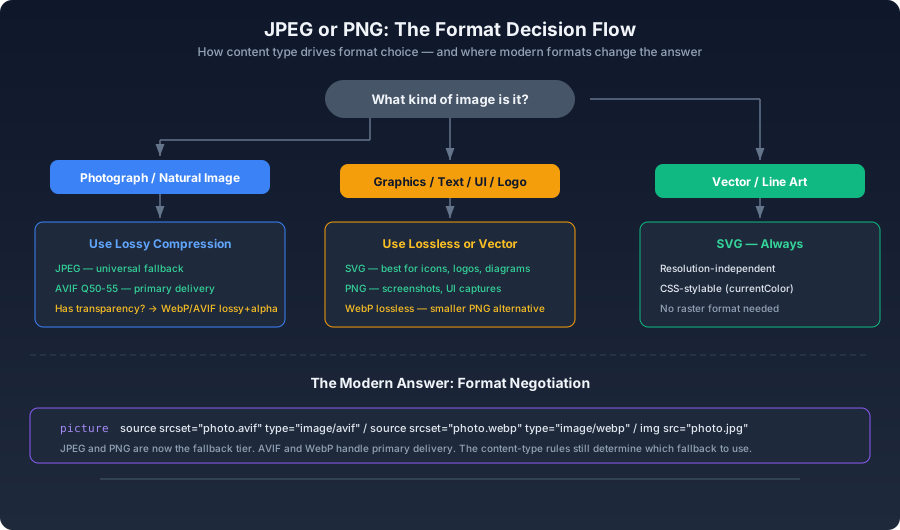
The Core Difference in One Sentence#
This difference flows from their compression strategies. JPEG transforms image blocks into the frequency domain and discards high-frequency detail the eye barely registers. PNG predicts pixel values from neighbors and losslessly compresses the prediction errors. One is willing to lose data the eye won't miss. The other preserves every pixel.
When JPEG Is the Right Choice#
Photographs and Natural Images#
Any image with smooth gradients, complex color blending, or no sharp text edges:
html1<img src="landscape.jpg" alt="Mountain sunset" />2<img src="portrait.jpg" alt="Team photo" />
JPEG's frequency-domain approach handles the subtle tonal variations in natural imagery efficiently. The 8x8 block artifacts it produces are invisible against the organic texture of a photograph. Against a flat-colored UI element or a line of text, those same artifacts are glaring.
Hero Images and Large Backgrounds#
These are typically large, gradient-heavy, and displayed behind other content — three conditions where JPEG's compression artifacts are least visible:
js1const sharp = require('sharp');2 3async function heroImage(input) {4 await sharp(input)5 .resize({ width: 1920, withoutEnlargement: true })6 .jpeg({ quality: 80, mozjpeg: true, progressive: true })7 .toFile('hero.jpg');8}
The progressive flag matters here: it gives the user a full-image preview at low resolution while the file streams in, rather than a top-to-bottom reveal.
Open Graph Share Images#
Fixed dimensions (1200 x 630px, 1.91:1 ratio). JPEG delivers sufficient quality at a file size that loads quickly when a social platform's crawler fetches it:
bash1sharp input.png --resize 1200x630 --jpeg '{"quality":85,"mozjpeg":true}' -o og-image.jpg
When PNG Is the Right Choice#
Transparency Required#
JPEG does not support an alpha channel. Any image that needs transparency must use PNG (or a modern format with alpha — WebP or AVIF):
html1<img src="logo.png" alt="Company logo" />
If the transparent image is primarily photographic content, use WebP or AVIF with lossy+alpha instead. They are typically 60–80% smaller than PNG-32 for the same visual result. PNG should only be the transparency format when pixel-exact preservation matters.
Screenshots and UI Captures#
Screenshots contain text, sharp edges, and flat color blocks — exactly the content that JPEG handles worst. JPEG produces visible ringing artifacts around text edges. PNG preserves them with pixel precision:
bash
pngquant applies lossy color quantization — reducing the palette from millions of colors to thousands — while preserving edge sharpness. For screenshots, this often cuts file size by 50–70% with no visible quality change, because the original screenshot never used millions of colors to begin with.Intermediate and Archival Files#
If an image will be edited, resized, or re-exported later, keep it as PNG:
text
This is why designers should hand off PNG or PSD files, not JPEGs. The receiving end needs clean source data.
Data Visualizations#
Charts, heatmaps, architecture diagrams — like screenshots, these depend on sharp edges and readable text. Vector formats (SVG) are ideal, but when a raster is necessary, PNG is the only viable choice among the classic formats.
The Gray Areas#
Icons and Decorative Graphics#
SVG beats both JPEG and PNG for icons — it's resolution-independent and can be styled with CSS. If a raster is unavoidable, use PNG for multi-color complex icons.
Images with Text Overlaid#
JPEG's block artifacts create halos around text. The best approach is to keep the photo as JPEG and overlay the text with CSS/HTML. If the text is baked into the image and separation isn't possible, use WebP at a conservative quality or PNG if the text must be perfectly sharp.
"Photo-Like But With Sharp Edges"#
Product photos on white backgrounds — photographic content with hard edges. These are the worst case for the classic JPEG/PNG binary. WebP lossy+alpha or AVIF handles them cleanly. PNG works but produces unnecessarily large files.
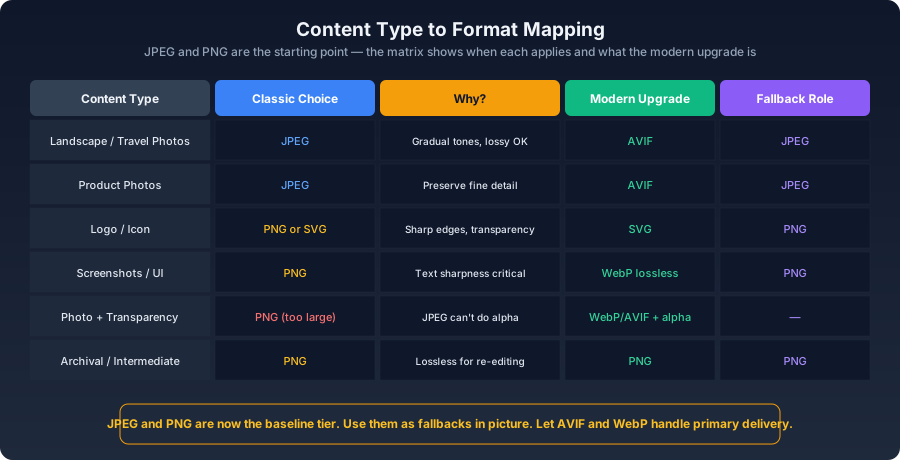
Batch Conversion Logic#
js1const sharp = require('sharp');2 3async function smartConvert(inputPath) {4 const metadata = await sharp(inputPath).metadata();5 const { channels, hasAlpha } = metadata;6 7 if (hasAlpha) {8 return sharp(inputPath)9 .webp({ quality: 80, alphaQuality: 90 })10 .toFile(replaceExt(inputPath, '.webp'));11 }12 13 const { size } = await fs.stat(inputPath);14 15 if (size > 1024 * 1024 || metadata.width > 1200) {16 return sharp(inputPath)17 .jpeg({ quality: 85, mozjpeg: true })18 .toFile(replaceExt(inputPath, '.jpg'));19 }20 21 return sharp(inputPath)22 .png({ compressionLevel: 9, palette: true })23 .toFile(replaceExt(inputPath, '.png'));24}
The heuristic is coarse but useful: transparent images get WebP lossy+alpha, large photographs get JPEG, and small graphics keep PNG with maximum compression.
JPEG and PNG Are Now the Baseline#
<picture> element:html1<picture>2 <source srcset="photo.avif" type="image/avif" />3 <source srcset="photo.webp" type="image/webp" />4 <img src="photo.jpg" alt="..." />5</picture>
<img> fallback should point to a PNG. A photograph's should point to a JPEG. The modern formats handle primary delivery, but the classic binary choice — continuous-tone or sharp-edge — determines everything downstream.