Three Concepts, One Sentence#
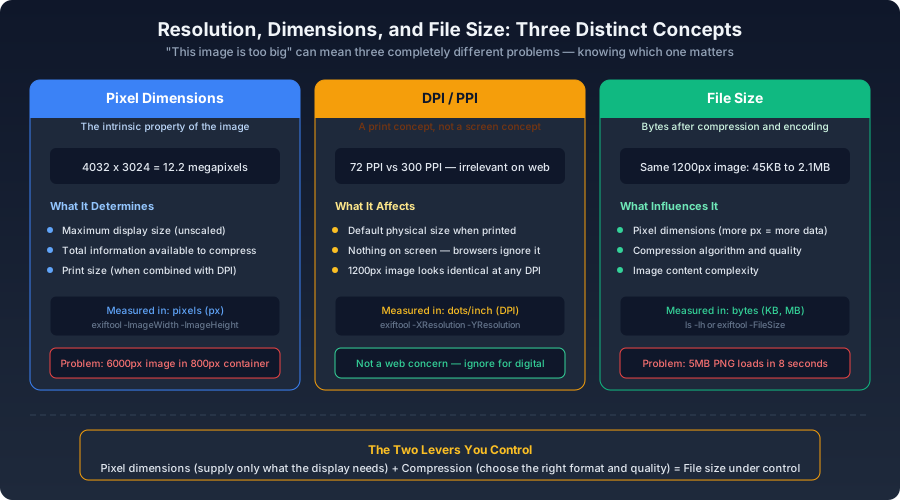
"This image is too big." That sentence can mean three completely different problems:
- File size is too large — downloads slowly ("this PNG is 5MB")
- Pixel dimensions are too large — overflows the container ("this image is 6000px wide")
- DPI is being misinterpreted — "this image is only 72 DPI so the quality is bad"
Most people blur these together. Separating them puts you ahead of the crowd.
Pixel Dimensions#
Pixel dimensions are an intrinsic property of the image — how many pixels wide and tall it is:
bash1exiftool -ImageWidth -ImageHeight photo.jpg2# ImageWidth: 40323# ImageHeight: 30244# This is a 4032 x 3024 pixel image, roughly 12 megapixels
Pixel dimensions determine:
- The maximum display size without scaling
- How much total information is available to compress
- The physical size when printed (combined with DPI)
Pixel Dimensions and Screen Display#
text
When an image's pixel width exceeds 3x its rendered width, you are shipping pixels the user cannot see. The extra resolution contributes nothing visually but adds directly to download time, data consumption, and decode cost.
DPI / PPI: A Print Concept, Not a Screen Concept#
DPI (Dots Per Inch) and PPI (Pixels Per Inch) matter for print. On the web, they matter almost not at all.
A 1200 x 800px image at 72 PPI and the same 1200 x 800px image at 300 PPI look identical in a browser. The device ignores the DPI metadata and renders the available pixels across whatever CSS dimensions the layout specifies.
bash1# This value affects printing, not web display2exiftool -XResolution -YResolution -ResolutionUnit photo.jpg
resolution media query queries the device, not the image.The misconception persists because design tools label export presets as "72 DPI" (for screen) and "300 DPI" (for print). Those labels set the DPI metadata field in the exported file. They do not affect how the image looks in a browser. A 1200px image at 72 DPI and a 1200px image at 300 DPI are pixel-identical if exported from the same source.
File Size#
File size is the byte count after compression and encoding:
bash1ls -lh photo.jpg2# -rw-r--r-- 1 user staff 2.3M photo.jpg
Five factors determine file size:
- Pixel dimensions — more pixels mean more data to encode
- Compression algorithm and quality setting — same image: JPEG Q60 might be 200KB, PNG lossless might be 3MB
- Image content complexity — at the same resolution, a solid color compresses far smaller than random noise
- Color depth and channel count — RGBA carries 33% more data than RGB before compression
- Metadata payload — embedded EXIF, ICC profiles, and thumbnails add bytes on top
Mapping "Too Big" to the Real Problem#
| Symptom | Root Cause | Fix |
|---|---|---|
| Page loads slowly | File size too large | Increase compression, switch to modern format |
| Image overflows layout | Pixel dimensions exceed container | Resize source or use srcset |
| Image looks blurry | Pixel dimensions too low, or quality too aggressive | Provide more resolution or raise quality |
| Print looks bad | Not enough pixels for the target DPI | Provide more pixels (300 PPI x print inches) |
The Mathematical Relationship#
The three concepts connect through "bytes per pixel" — a simple ratio that tells you whether an image is over-compressed, under-compressed, or roughly right:
js1function analyzeImage(metadata) {2 const totalPixels = metadata.width * metadata.height;3 const bytesPerPixel = metadata.fileSize / totalPixels;4 const megapixels = (totalPixels / 1_000_000).toFixed(1);5 6 return {7 megapixels: `${megapixels}MP`,8 fileSizeKB: (metadata.fileSize / 1024).toFixed(1),9 bytesPerPixel: bytesPerPixel.toFixed(2),10 assessment: bytesPerPixel > 1.5 ? 'likely under-compressed' :11 bytesPerPixel < 0.2 ? 'likely over-compressed' : 'reasonable compression',12 };13}14 15const sharp = require('sharp');16async function inspect(path) {17 const meta = await sharp(path).metadata();18 const stats = await fs.stat(path);19 return analyzeImage({20 width: meta.width,21 height: meta.height,22 fileSize: stats.size,23 });24}
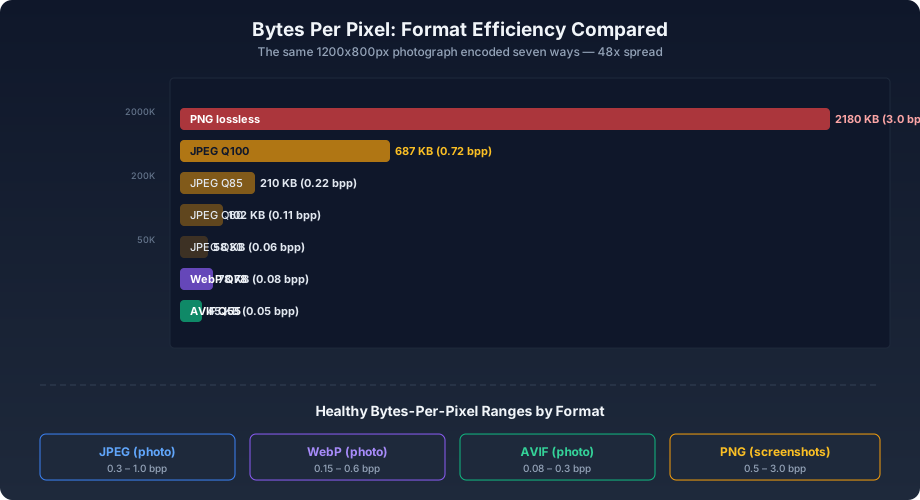
Healthy bytes-per-pixel ranges:
- JPEG photo: 0.3–1.0 bpp
- WebP photo: 0.15–0.6 bpp
- AVIF photo: 0.08–0.3 bpp
- PNG screenshot/icon: 0.5–3.0 bpp (entirely content-dependent)
Practical Numbers for Common Contexts#
The Two Levers#
Pixel dimensions control how much data exists before compression. Compression controls how efficiently that data gets stored. These are the only two levers you have, and they address different problems:
- If an image is 4000px wide but renders at 800px, compression alone won't fix it. You are shipping 25x more pixel data than necessary, and compression can only reduce the byte cost of each pixel — it can't eliminate the extra pixels.
- If an image is correctly sized at 1600px but still 500KB, better compression (format choice, quality tuning) is what you need.
The skill is knowing which lever to pull. Most "my images are too big" problems are actually both: the image is too many pixels wide, and it's in a format that stores those pixels inefficiently.