Why You Need to Know What's Inside an Image#
Your operating system tells you three things about an image file: name, dimensions, and creation date. That's the surface layer. What you don't see is how the image was encoded, which chroma subsampling it uses, whether an ICC color profile is embedded, whether there's a hidden thumbnail, and what compression parameters were applied.
These details directly inform every optimization decision you make. A JPEG saved at quality 95 can be re-encoded with sensible lossy settings and shrink by 60–70% with no visible difference. The same JPEG already saved at quality 55 will only degrade further if you compress it again — you'd need to go back to the source. Without knowing which case you're in, you're working blind.
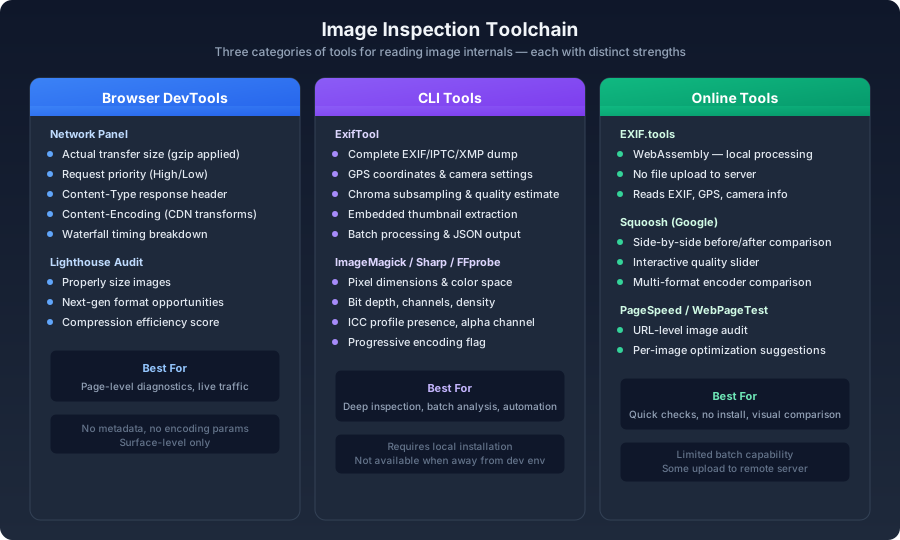
Here's the toolchain at a glance:
Browser Developer Tools#
The Network Panel#
Open DevTools, switch to the Network tab, filter by Img, and reload the page. For every image, you immediately see:
- Transfer size (the Size column). This is what actually traveled over the wire — gzip or brotli compression applied by the CDN is already factored in. The decoded pixel size in memory is a different number, typically 3–4x larger for photos.
- Request priority (the Priority column). If your cover image shows "Low" here, you forgot
fetchpriority="high"and it's queuing behind less important resources. - Content-Type response header. Confirms your CDN is returning
image/avifand not silently falling back to JPEG. - Content-Encoding. If the CDN is applying an additional compression layer on top of the image format itself.
- Waterfall timing. Shows DNS lookup, connection negotiation, TTFB, and download duration for each image. A resource taking 800ms to start downloading has a server-side or redirect problem, not an image size problem.
Lighthouse Image Audits#
Run Lighthouse and check the Opportunities section. It flags three specific image problems:
- Properly size images — images whose intrinsic resolution far exceeds the rendered size. A 2400px image in a 400px container wastes roughly 35x the necessary pixels.
- Serve images in next-gen formats — JPEGs and PNGs that could be AVIF or WebP. The estimated savings are usually accurate to within 10–15%.
- Efficiently encode images — images whose compression parameters could be tightened without visible quality loss. This is the one that catches JPEGs saved at unnecessarily high quality settings.
Right-Click Inspection#
<img> and open it in a new tab. The URL bar will reveal the exact image URL with any CDN transformation parameters. This is the fastest way to confirm whether your CDN's image resizing and format conversion are actually firing.Command-Line Tools#
ExifTool — The Universal Metadata Reader#
bash1# macOS2brew install exiftool3 4# Full metadata dump5exiftool photo.jpg6 7# Targeted fields8exiftool -ImageSize -FileSize -Quality -Compression \9 -ColorSpace -BitDepth -EncodingProcess photo.jpg10 11# JSON output for scripting12exiftool -j photo.jpg13 14# Recursive directory scan15exiftool -r -ImageSize -FileSize -MIMEType ./images/
The fields that matter for optimization decisions:
| Field | What It Tells You | Why It Matters |
|---|---|---|
ImageWidth / ImageHeight | Pixel dimensions | Is this image oversized for its display context? |
FileSize | Bytes on disk | The bluntest and most useful metric |
MIMEType | Actual file format | A .jpg extension doesn't guarantee JPEG encoding |
EncodingProcess | Baseline vs. Progressive JPEG | Progressive loads as a full-image preview; baseline renders top-to-bottom |
YCbCrSubSampling | Chroma subsampling mode | 4:2:0 halves color data vs. 4:4:4 which preserves every pixel's color |
Quality | Estimated JPEG quality | An approximation, not always reliable — depends on the encoder |
ColorSpace | sRGB, Display P3, Adobe RGB | Affects how colors render on different displays |
BitsPerSample | Bit depth | 8-bit is standard; 16-bit means the source had more data to work with |
ImageMagick identify#
bash1# Compact summary2identify -verbose photo.jpg3 4# Just the useful bits5identify -format "%wx%h %b %m Q=%[quality] %[colorspace]" photo.jpg6# → 1920x1280 245KB JPEG Q=92 sRGB
FFprobe (If You Already Have FFmpeg)#
bash
Sharp Metadata (Node.js)#
js1const sharp = require('sharp');2 3async function inspectImage(path) {4 const metadata = await sharp(path).metadata();5 6 console.log({7 format: metadata.format, // 'jpeg', 'png', 'webp', 'avif'8 width: metadata.width,9 height: metadata.height,10 space: metadata.space, // 'srgb', 'rgb16'11 channels: metadata.channels, // 3 = RGB, 4 = RGBA12 depth: metadata.depth, // 8, 1613 density: metadata.density, // DPI14 hasProfile: metadata.hasProfile, // ICC profile embedded?15 hasAlpha: metadata.hasAlpha,16 isProgressive: metadata.isProgressive,17 pages: metadata.pages, // frame count for GIF/PDF18 });19}
Online Tools#
For quick checks when you're not at your dev machine:
- EXIF.tools processes everything locally via WebAssembly. The file never leaves your machine — important for sensitive or pre-release images.
- Squoosh (from Google) gives you side-by-side before/after comparisons across multiple encoders. The quality slider is interactive, so you can visually find the inflection point for a specific image.
- PageSpeed Insights / WebPageTest audit images at the page level. They'll tell you which specific images on a URL need attention, not just generic advice.
The Decision Flow#
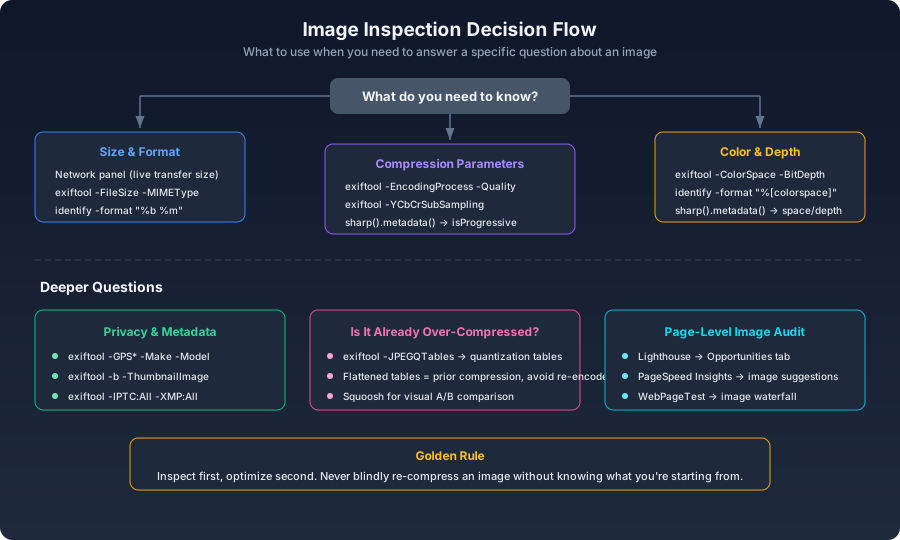
Knowing which tool to reach for depends on what question you're asking:
Understanding Chroma Subsampling Notation#
YCbCrSubSampling as YCbCr4:2:0, YCbCr4:2:2, or YCbCr4:4:4. The notation describes how many chrominance (color) samples are stored relative to luminance (brightness) samples:text
For photographs, 4:2:0 is almost always fine — the eye resolves luminance detail far better than color detail, and the visual difference is essentially zero for natural imagery. For screenshots and images containing text, however, 4:2:0 produces visible color fringing at edges. Those should use 4:4:4, or better yet, a format that doesn't do chroma subsampling at all (PNG or lossless WebP).
Detecting Prior Compression#
JPEG compression leaves fingerprints in the quantization tables — the matrices that determine how aggressively each frequency coefficient gets rounded. You can extract them:
bash
When an image has been compressed multiple times with different quality settings, the quantization tables take on a characteristic "flattened" pattern. The coefficients no longer follow the smooth distribution of a single-pass encode. This is a clear signal: the image has already been through the wringer. Further lossy compression will stack artifacts on top of artifacts. If you see this, find the original source file.
A Practical Inspection Routine#
bash1# 1. Quick overview — immediately tells you if there's a size problem2exiftool -ImageSize -FileSize -MIMEType photo.jpg3 4# 2. If file is suspiciously large for its dimensions, check encoding5exiftool -EncodingProcess -YCbCrSubSampling -Quality photo.jpg6 7# 3. If colors look wrong, check color space8exiftool -ColorSpace -ProfileDescription photo.jpg9 10# 4. Dump everything to JSON for programmatic processing11exiftool -j -G -t photo.jpg > info.json
The rule is simple: inspect before you act. Every image tells you what it is, if you know where to look.